Getting started
Sign in with your center code, the screen layout, language, dark mode, search, live updates and roles.
Who uses it: Everyone
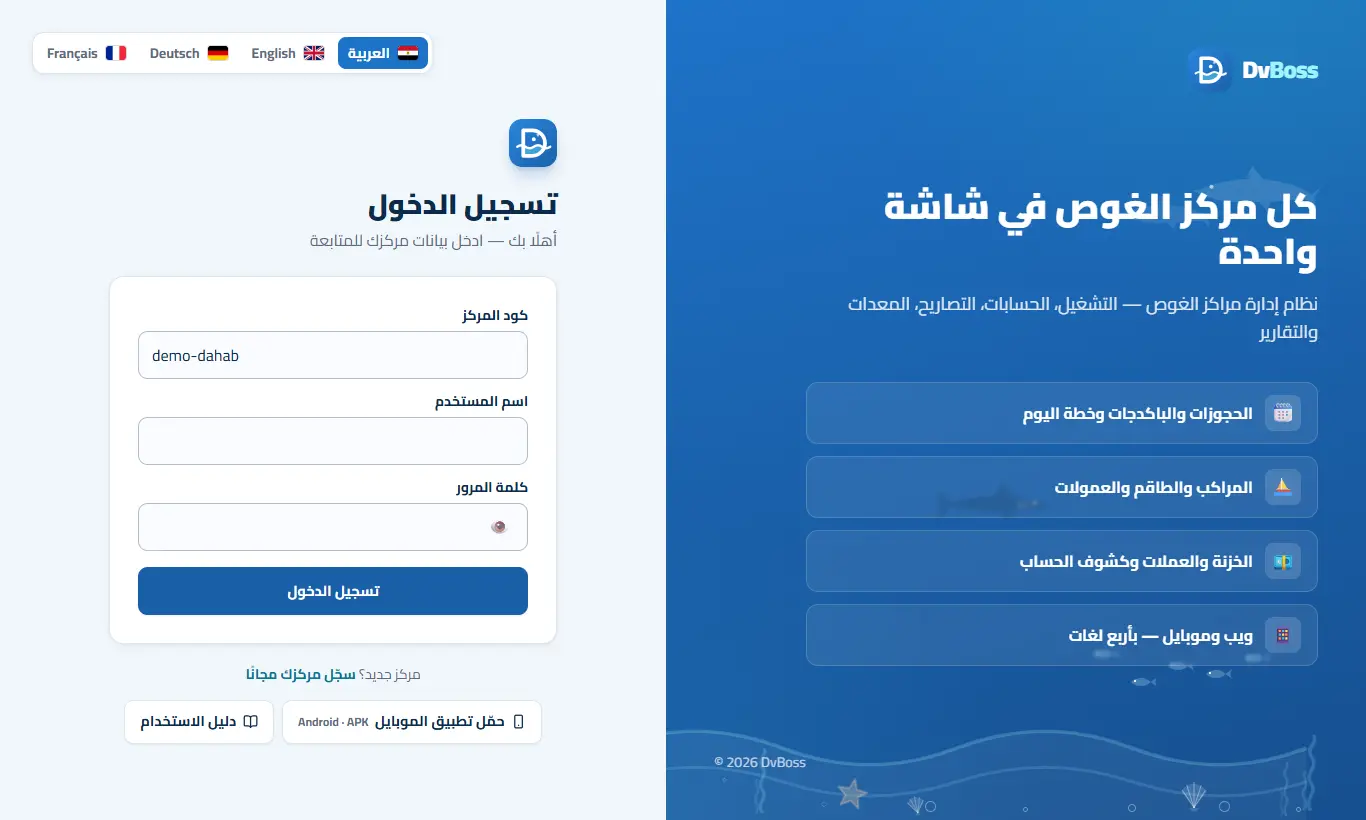
DvBoss runs in the browser on any computer or tablet, and as an Android app. Every dive center has its own separate workspace: the center code you sign in with decides whose data you see, and nobody from another center can ever see yours.
Step by step
- 1
Open app.dvboss.com. Type your center code (for example `seamax`), your username and password, then Sign in. The center code is remembered on this device.
- 2
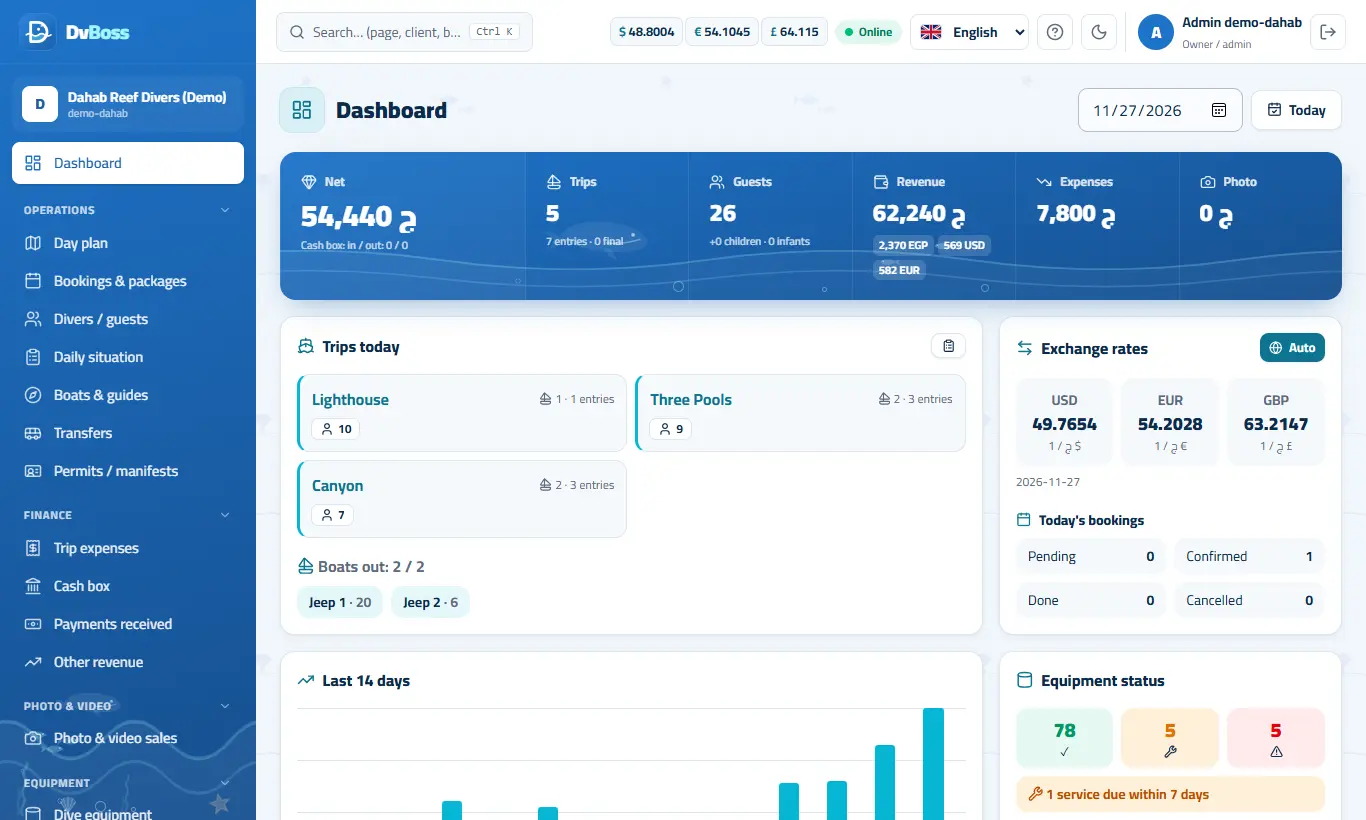
You land on the Dashboard for today. The menu on the side (top-left ☰ on a phone) is grouped: Operations, Finance, Photo & video, Equipment, Staff & partners, Reports, Administration. You only see what your role allows.
- 3
Change the language from the selector in the top bar (العربية, English, Deutsch, Français). It is saved for your user, and Arabic switches the whole screen to right-to-left.
- 4
Press Ctrl+K (or click the search box) to jump to any page or find a guest, diver, booking, permit, employee, expense or photo sale by name or phone.
- 5
The ? button opens this guide in your language. The moon button switches dark mode; the door button signs you out.
Tips
On a phone or tablet, the sidebar opens from the ☰ button. The Android app does the same work with an offline mode — see Mobile app.
Signed in on a shared computer? Use the door button to sign out. An admin can also sign a user out everywhere from Users.
Screens
 12345678910
- 1
Search (Ctrl+K) — find any page, guest, diver, booking or permit.
- 2
Language — Arabic, English, German or French, saved for your user.
- 3
? — opens this guide.
- 4
Dark mode.
- 5
Menu — grouped by Operations, Finance, Photo, Equipment, Staff, Reports and Administration.
- 6
The day in numbers — net, trips, guests, revenue, expenses and photo.
- 7
Trip status — each destination with its boats, rows and guests.
- 8
Exchange rates of the day; Auto fetches market rates.
- 9
Last 14 days — revenue against expenses.
- 10
Equipment — good, in service, damaged and services due.