User guide
Every workflow in DvBoss, step by step, with screenshots from real demo centers.
Start with the daily loop below. Each workflow explains the why and the how with a worked example; the screen reference lists every field and button of each screen.
A day at the center
Workflows
Screen reference
One page per screen: what it is for, every button, every field and who may use it.
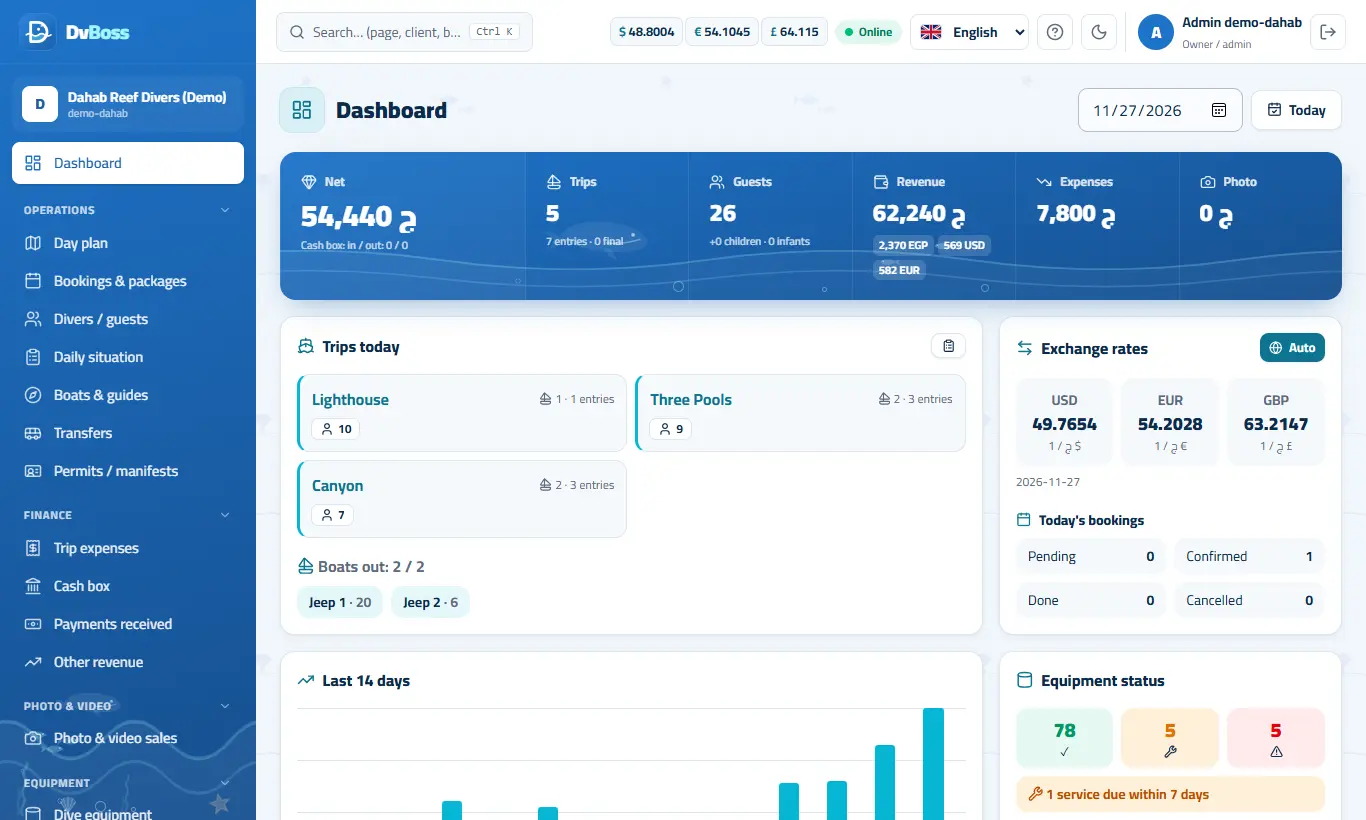 12345678910
- 1
Search (Ctrl+K) — find any page, guest, diver, booking or permit.
- 2
Language — Arabic, English, German or French, saved for your user.
- 3
? — opens this guide.
- 4
Dark mode.
- 5
Menu — grouped by Operations, Finance, Photo, Equipment, Staff, Reports and Administration.
- 6
The day in numbers — net, trips, guests, revenue, expenses and photo.
- 7
Trip status — each destination with its boats, rows and guests.
- 8
Exchange rates of the day; Auto fetches market rates.
- 9
Last 14 days — revenue against expenses.
- 10
Equipment — good, in service, damaged and services due.
Roles
| Owner / admin | Everything, including users, lists, settings, trash, audit log and unlocking final rows. |
| Manager | All work screens and reports; closes and reopens days; manages the lists. No users, settings, trash or audit. |
| Accountant | Same data rights as the manager: expenses, cash box, payments, commissions, payroll, reports; closes and reopens days. |
| Operations / front desk | Front desk: bookings, divers, situation, boats & guides, transfers, permits, attendance, expenses and cash box. Adds and edits, can close a day, but can't delete most things, unlock final rows or open reports. |
| Photographer | Records photo & video sales only (can add, not change or delete). |
| Permit clerk | Permits and guest manifests; sees the situation, divers and boat plan without any amounts. |
| Read only | Sees everything including money and reports, changes nothing. Good for a partner or the owner abroad. |
DvBoss · this guide follows the app as it is today. Field names below are taken from the app itself.